

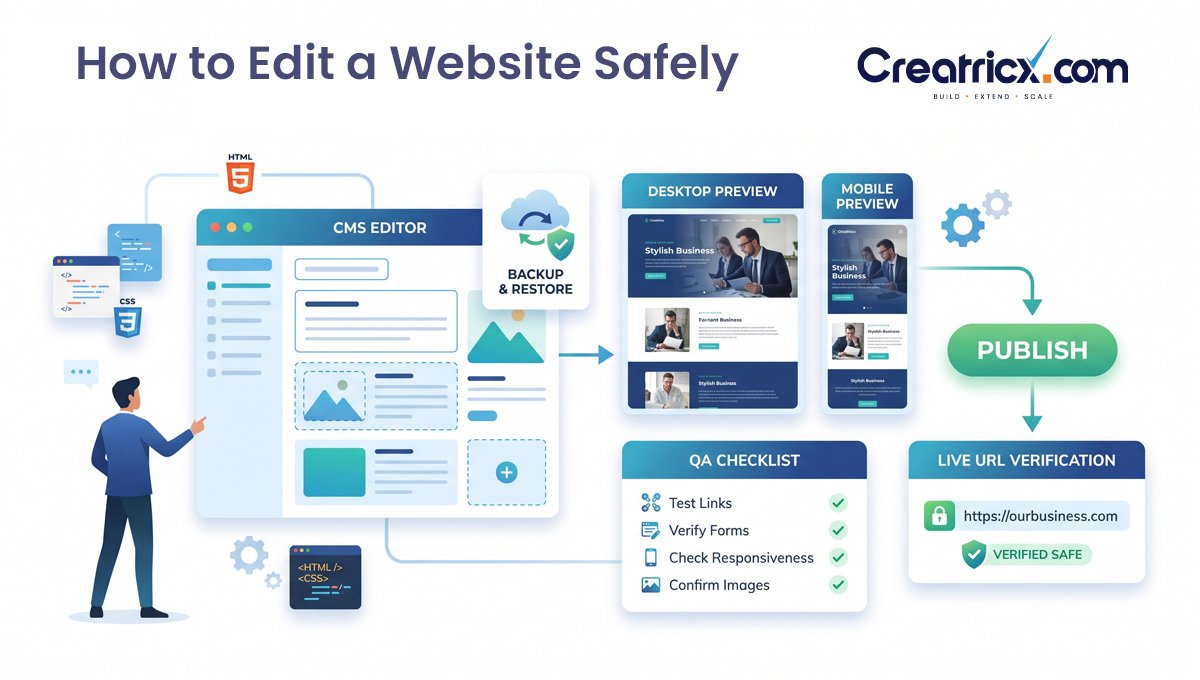
How to Edit a Website Without Breaking It
To edit a website, first identify how it was built, create a backup or restore point, then make the change in its CMS, website builder, or codebase. Preview desktop and mobile, check links, forms, and SEO, publish the update, and verify the live page. Custom-coded sites should usually be edited through version control and staging.
Most website edits aren’t technically difficult. The risky part is editing the wrong layer. A phone number might live in one page, a global header, a reusable component, a theme setting, or hard-coded template logic. If you know where the change belongs, the job is usually straightforward. If you do not, a five-minute edit can become a small archaeological project.
This Creatricx guide shows a safe way to edit websites across WordPress, Wix, Squarespace, Shopify, and custom-coded sites. It also covers what to check before publishing, what can affect SEO, and when a simple content change has quietly crossed the line into development work.
Table of Contents
The Short Version
First identify the platform and the editing layer: page content, shared layout, global styles, or functionality.
Use revisions, a duplicated page/theme, staging, or another rollback method before meaningful changes.
Edit the smallest thing that solves the problem instead of redesigning nearby sections because they happen to be visible.
Preview the page on desktop and mobile before publishing.
After publishing, test the live page, not just the editor preview.
Do not casually change URLs, templates, tracking code, checkout logic, forms, or custom scripts on a live site.
Before You Edit Anything, Find the Layer
A useful way to think about a website is as four overlapping layers. The platform name matters less than this distinction.
1. Page content
This is the copy, images, buttons, links, embeds, and page-specific sections that belong to one page or post. This is where most routine edits should happen.
2. Shared layout
Headers, footers, navigation, announcement bars, reusable sections, templates, product layouts, and other elements that can appear across many URLs. A change here can affect the entire site.
3. Global design
Typography, color palettes, button styles, spacing rules, section widths, and other design-system choices. One change may alter dozens of pages at once.
4. Functionality
Forms, checkout, booking, search, plugins, apps, integrations, tracking, JavaScript, custom PHP/Liquid/templates, databases, and API connections. This is where a “small edit” most often becomes development work.
A rule we use at Creatricx Classify the change before opening the editor. Content-only edits can usually move quickly. Layout and global-style changes deserve a preview and cross-page check. Functional or code changes belong in a development workflow with testing and rollback. |
|---|
The Safe Way to Edit a Website
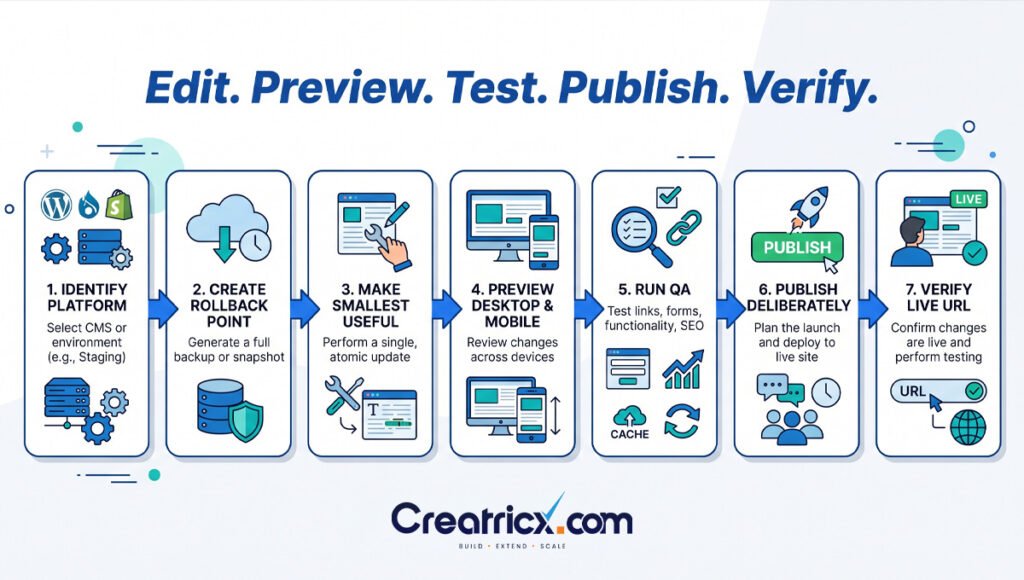
Step 1: Identify the platform
If you already know the site is WordPress, Wix, Squarespace, Shopify, Webflow, or custom-built, this is easy. If you don’t, check the login URL, hosting account, page source, technology-detection tools, or ask whoever built the site. Do not start changing files until you know which system is actually serving the page.
Step 2: Create a rollback point
For a WordPress content edit, revisions may be enough. For a larger WordPress or custom-code change, use staging and a proper backup. Shopify explicitly recommends duplicating the theme before customization. Squarespace recommends duplicating a page and keeping the copy private if you want a test version. The point is simple: a reversible change is safer than a courageous one.
Step 3: Make the smallest useful change
If the goal is to update a price, update the price. Do not also change the page template, button system, font stack, header structure, and three plugins because they were nearby. Small changes are easier to review, test, explain, and undo.
Step 4: Preview before publishing
Check the page at realistic desktop and mobile widths. Look for wrapping headlines, cropped images, buttons that move, awkward spacing, hidden content, and any element that was positioned manually.
Step 5: Run a quick QA pass
Click important links and buttons. Submit forms using a test address. Check phone and email links. Confirm images load, menus open, and tracking or conversion events still fire when relevant.
Step 6: Publish deliberately
Know the difference between saving a draft and making a live change. Wix, for example, requires publishing after edits. Some systems auto-save drafts, some save live theme settings, and some deploy only after a code push.
Step 7: Verify the live URL
Open the page in a fresh or private browser window. If the change is missing, check cache, CDN, optimization plugins, browser cache, or whether you edited a draft instead of the published version. The live page is the source of truth.
How to Edit a Website by Platform
How to Edit a WordPress Website
For most page-content changes, open the WordPress dashboard, go to Pages (or Posts), choose the page, and edit the blocks that contain your text, images, buttons, columns, or other content. With a block theme, shared site elements and templates can also be edited through Appearance → Editor. WordPress documents the Site Editor as a place where pages can be edited in the context of the surrounding template.
Log in to WordPress and open Pages.
Choose the page you want to change and click Edit.
Select the block containing the text, image, button, list, columns, or other content.
Use the block toolbar and right-hand settings panel for alignment, spacing, links, dimensions, and other block-specific options.
Preview the page, especially if you changed columns, images, spacing, or reusable sections.
Click Update when the page is ready.
Open the live URL in a private window and verify the change.
Useful safety feature: WordPress revisions keep records of saved drafts and published updates, so you can compare changes and restore an earlier version when revisions are enabled. That is especially useful for copy edits, but it is not a substitute for a full site backup before plugin, theme, database, or code changes.
Official references: WordPress Site Editor Pages • WordPress Revisions
How to Edit a Wix Website
In Wix, open the site dashboard and click Edit Site to launch the editor. Click the element you want to change, then edit its text, image, link, layout, or design settings. Use the site-design controls when the change should apply more broadly.
Open the Wix dashboard and choose Edit Site.
Navigate to the page you want to update.
Click text, images, buttons, sections, or other elements to edit them.
Use Site Design for broader colors and text-theme changes.
Preview the site and check the mobile layout.
Publish the site to make the change live.
Important Wix detail Saving an edit is not the same as publishing it. Wix’s current help documentation explicitly notes that changes need to be published before they appear on the live website. |
|---|
Official references: Wix Editor: Getting Started • Wix: Publishing Your Site
How to Edit a Squarespace Website
For a normal Squarespace page, open the Pages panel, select the page, and click Edit. Content is usually managed with blocks and sections. Global fonts, colors, and broad visual rules live in Site Styles rather than inside one text block.
Open the Pages panel and select the page.
Click Edit.
Click an existing block to change it, or add/reorder blocks and sections.
Use page settings for the URL slug, featured image, SEO description, and other per-page options.
Use Site Styles for global fonts, colors, and layout styling.
Save the changes and check the page on mobile.
A good Squarespace testing trick Squarespace recommends duplicating a page and keeping the copy private when you want to experiment with a layout before replacing the live page. That is far safer than discovering your new section stack is eight screens tall after customers discover it first. |
|---|
Official references: Squarespace Layout Pages • Squarespace Page Settings • Squarespace Site Styles
How to Edit a Shopify Website
Shopify separates store content from theme presentation. Product and collection content is edited in the relevant admin areas, while layout, typography, colors, and theme sections are managed through the theme editor.
Edit products, collections, pages, or blog content in their relevant Shopify admin sections.
For the storefront layout, go to Online Store → Themes and open Customize.
Choose the page template you want to preview.
Edit, add, move, hide, or remove theme sections and blocks.
Check desktop and mobile previews.
Save the theme changes and verify the live store.
Before editing a Shopify theme Shopify’s official theme-editor guidance recommends duplicating the theme before customization so you have a backup copy to return to. Do this before structural design work or Liquid edits, not after the homepage has acquired a philosophical objection to rendering. |
|---|
Official reference: Shopify Theme Editor
How to Edit a Custom-Coded Website
A custom site is different because there may be no visual editor at all. The page could be generated from HTML templates, React components, a PHP framework, a static-site generator, or another codebase. Editing the visible page means finding the source that produces it.
Find the repository or source files that generate the page.
Create a branch or safe working copy instead of changing the production branch directly.
Run the site locally or in a staging environment.
Edit the appropriate HTML, template, component, CSS, JavaScript, or backend logic.
Run tests and review the actual page in a browser.
Commit the change, have it reviewed where possible, then deploy through the normal release process.
Smoke-test the live URL after deployment.
Do not confuse browser DevTools with editing the website Changes made through Inspect Element or browser developer tools are temporary. They are useful for testing CSS or trying copy locally, but they disappear on refresh because they do not modify the source website. |
|---|
Three Website Edits That Look Simple but Deserve a Method
Example 1: Change a phone number in the header
Do not immediately open the current page and search for the number. First check whether the header is global. Update both the visible number and the phone link. Then test it from a mobile device. If the same number appears in the footer, contact page, structured data, or other reusable components, update those deliberately rather than hoping the site is consistent by accident.
Example 2: Replace a hero image
Choose an image that fits the existing aspect ratio, compress it before upload, and use an efficient format such as WebP or AVIF when your platform and workflow support it. Set useful alt text when the image conveys information; use empty alt text for purely decorative images. After replacement, check the crop on desktop and mobile, then make sure the new asset did not turn a fast homepage into a photography archive.
Example 3: Rewrite a service section without losing SEO
Improve the copy, but keep the page’s purpose clear. Preserve or improve the main topic, relevant headings, internal links, conversion path, and useful supporting detail. Do not change the URL slug casually. If you do change a live URL, plan the redirect and update internal links. The goal is a better page for users, not a keyword substitution exercise.
How to Edit a Website Without Accidentally Hurting SEO
Website editing and SEO are not separate jobs. Many routine edits change signals that search engines and users rely on, including page titles, headings, internal links, image context, URLs, structured content, and the amount of useful information on the page.
Keep the main search intent intact when rewriting a page that already performs well.
Don’t change a URL slug unless there is a reason. If it must change, redirect the old URL and update important internal links.
Keep one clear page topic instead of adding unrelated sections because another keyword looked attractive.
Use descriptive headings that help readers scan the page.
Update internal links when services, locations, or related resources change.
Compress new images and use descriptive filenames. Write alt text for accessibility and meaning, not as a place to repeat keywords.
Check title tags and meta descriptions if the edit significantly changes the page’s offer or topic.
Make sure the page is still indexable and that canonical/noindex settings were not changed by a template or plugin edit.
If you changed forms, CTAs, analytics, or checkout behavior, test conversion tracking as well as the visual page.
Why the article is written this way Google’s current people-first guidance asks whether content provides original information, complete coverage, clear expertise, and substantial value beyond what other pages already say. Its 2026 generative-search guidance also emphasizes unique, non-commodity content and useful first-hand perspective. That is why this tutorial focuses on editing decisions, rollback, QA, platform differences, and real failure points instead of merely listing where each Edit button lives. |
|---|
Google references: Creating Helpful, Reliable, People-First Content • Optimizing for Generative AI in Search
The 10-Minute Website Editing QA Checklist
Open the edited page on desktop and mobile.
Check the headline, body copy, buttons, images, and section spacing.
Click all links you changed.
Submit any form you touched and confirm the notification or CRM flow still works.
Check navigation, header, and footer if a shared component was edited.
Confirm the URL, title, headings, and indexability are still correct.
Verify new images are compressed and have appropriate alt text.
Check any analytics, event tracking, call tracking, or ecommerce actions affected by the edit.
Clear or purge cache only when your platform/CDN workflow requires it, then retest.
Open the live URL in a private window and verify exactly what a visitor sees.
Why Your Website Changes Aren’t Showing
You saved but did not publish
Common in builders such as Wix. Make sure the updated version was actually published.
You edited the wrong copy
Staging, draft pages, duplicate themes, translated pages, and cloned landing pages are wonderful until you update the one nobody can see.
Cache is serving the old version
Your browser, CMS cache, performance plugin, hosting cache, or CDN may still be serving an older page.
The content is controlled globally
The text you see may be coming from a theme template, global component, product template, dynamic field, or reusable section rather than the page editor.
A plugin or app overrides the page
Page builders, ecommerce apps, personalization tools, translation systems, and custom widgets can control content outside the obvious editor.
The mobile layout is separate or manually positioned
Some builders allow mobile-specific positioning. A desktop edit may need a second pass on smaller screens.
When Can You Edit the Website Yourself?
Routine edits are reasonable when the platform is familiar, the change is reversible, and the blast radius is small. Development help becomes more sensible when the edit affects code, data, revenue, tracking, security, or many pages at once.
| Usually safe for a trained site editor | Needs more care / staging | Usually a developer task |
|---|---|---|
| Text and typo fixes | Header/footer layout | Custom JavaScript or PHP/Liquid |
| Replacing a normal image | Changing global typography | Checkout or payment logic |
| Updating a link or CTA label | Changing a live URL slug | API / CRM integrations |
| Publishing a blog post | Large page-builder restructuring | Database or migration work |
| Updating opening hours/contact info | Plugin/app changes | Authentication, security, permissions |
| Adding an internal link | Tracking setup changes | Broken production deployment |
How Creatricx Approaches Website Edits
We treat website edits as change management at a small scale. The amount of process should match the risk, but there should always be a clear answer to three questions: what is changing, where does it live, and how do we know the change worked?
Content lane: copy, images, links, CTAs, business details, and low-risk page updates.
Presentation lane: responsive layout, page-builder work, theme styling, reusable sections, CRO, and visual improvements.
Development lane: forms, tracking, integrations, custom code, templates, ecommerce behavior, performance, and bug fixes.
The practical benefit of separating these lanes is that a simple content request does not need a full development ceremony, while a risky code or template change does not get treated like a typo. The process stays proportional to the change.
Need someone to edit, fix, or improve the site? Creatricx provides website development and ongoing support for business websites, WordPress/CMS sites, ecommerce stores, landing pages, forms, integrations, performance improvements, technical SEO foundations, and post-launch maintenance. |
|---|
Website Development Services • Contact Creatricx
Frequently Asked Questions
Can I edit a website without coding?
Yes, if the site uses a CMS or visual website builder such as WordPress, Wix, Squarespace, or Shopify. You can usually change text, images, links, page sections, and basic styling without coding. Custom functionality, templates, integrations, and advanced layout changes may still need development work.
How do I edit a WordPress website?
Log in to WordPress, open Pages or Posts, select the page, and edit its blocks. Shared templates and site-wide parts may be managed through Appearance → Editor on block-theme sites. Preview the change, click Update, and verify the live page.
How do I edit a Wix website?
Open your Wix dashboard, click Edit Site, choose the page, and click the elements you want to change. Preview the desktop and mobile versions, then click Publish. Saving alone does not make the update live.
How do I edit a Squarespace website?
Open the Pages panel, choose the page, click Edit, then modify its blocks and sections. Page settings control options such as the URL and SEO description, while Site Styles controls broader fonts, colors, and visual rules.
How do I edit a Shopify website?
Edit products, collections, and pages in the relevant Shopify admin areas. For the storefront layout, open Online Store → Themes → Customize. Duplicate the theme before meaningful design changes so you have a safe backup.
Can I edit a website using Inspect Element?
You can temporarily change what your browser displays with developer tools, but those edits are local to your browser and disappear on refresh. Permanent changes must be saved through the CMS, website builder, theme, repository, or backend that actually generates the page.
Will editing my website affect SEO?
It can. Changes to headings, URLs, content, internal links, images, metadata, templates, indexability, and page speed can affect search performance. Routine edits are usually safe when you preserve the page intent, test links and mobile layout, and avoid accidental URL or technical changes.
Why can’t I see my website changes after publishing?
The usual causes are caching, editing the wrong page/theme/staging copy, failing to publish, or changing a component that is overridden elsewhere. Open the live page in a private window, then check CMS, hosting, plugin, and CDN caches if the old version remains.
Can I edit someone else’s website?
Only with permission and the appropriate account or code access. The public website itself does not give you the right or the technical ability to make permanent changes. Browser tools can alter your local view, but not the website for other visitors.
Final Thoughts
Learning how to edit a website is less about memorizing one platform and more about understanding where a change lives. Page content, shared layout, global design, and functionality are different layers. Once you identify the layer, the correct editor becomes much easier to find.
The safest editing habit is equally simple: make the smallest useful change, keep a way back, preview it, test the important paths, publish deliberately, and verify the live page. That process works whether the site is WordPress, Wix, Squarespace, Shopify, or a custom application.
And when the edit touches code, checkout, forms, tracking, integrations, security, or many pages at once, treat it as development work. Websites are wonderfully forgiving until the precise moment they are not.
Technical Sources Checked
Edit with a Safe Release Path
Website Updates Without Live-Site Guesswork
From a single content correction to templates, forms, ecommerce, tracking, integrations, performance, and maintenance, Creatricx can match the workflow to the risk of the change.