
How to Publish a Website Without Launch-Day Surprises
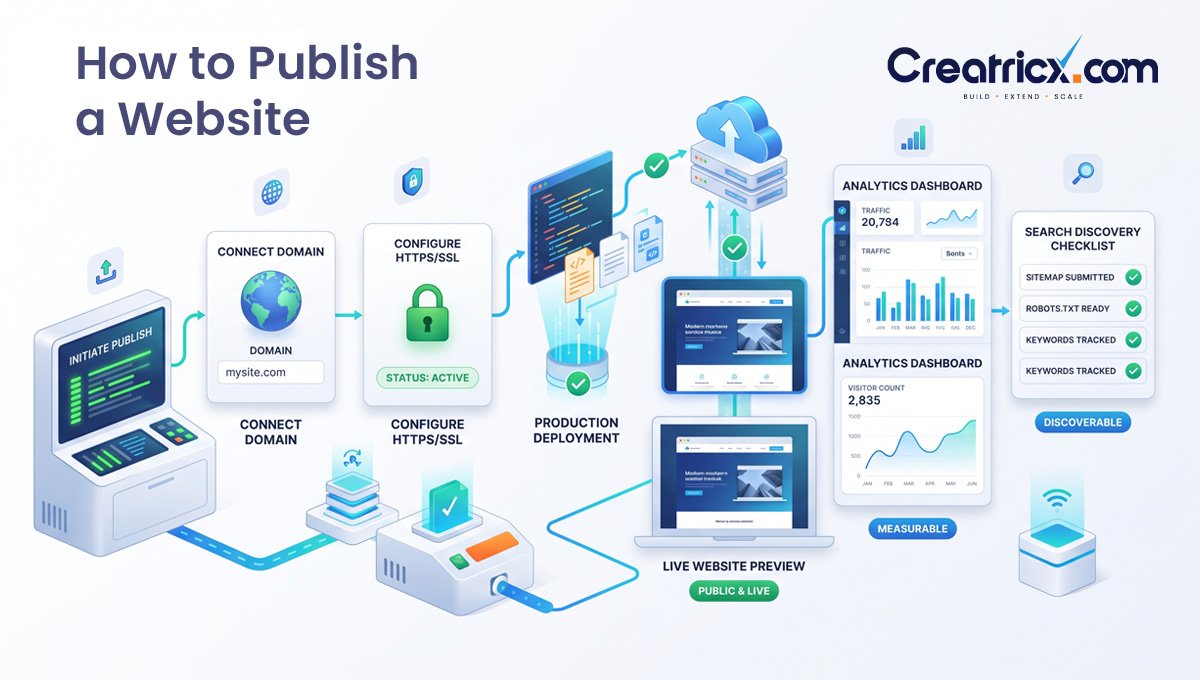
To publish a website, move the finished site into its live production environment, connect or confirm the public domain, make the site publicly accessible, test the live user journey, and then help search engines discover it. The exact button differs by platform, but a safe launch always separates preview, production, domain, testing, and indexing.
That distinction matters because “publish” is one of those deceptively simple website words. On Wix, it really can be a button. On Shopify, launching a store can involve publishing a theme and removing storefront password protection. On a custom application, publishing may mean promoting a tested deployment to production, attaching a domain, verifying environment variables, and watching logs after traffic arrives.
A website can also be published and still not be ready. The homepage may load while forms fail, analytics does nothing, an old staging noindex rule blocks Google, or the domain points at the wrong server. The goal of this guide is not merely to get a page onto the internet. It is to make the website safely public, usable, measurable, recoverable, and discoverable.
Table of Contents
The Short Version: Publishing Has Five Moving Parts
The website has to exist in a production environment that can serve visitors.
The public domain has to resolve to the correct host or platform.
The site must be public rather than hidden behind a password, coming-soon mode, maintenance screen, or private setting.
The live version needs to be tested as a visitor would experience it, including forms, checkout, navigation, mobile layout, analytics, and security.
Search discovery is separate from publishing. Google can discover a site through links and crawling, while Search Console and a sitemap help you monitor and accelerate discovery.
The most important distinction Publishing makes a website available. Indexing makes a page eligible to appear in a search engine. A site can be live for humans and still be unknown to Google, blocked by noindex, hidden behind a password, or simply waiting to be crawled. |
|---|
Before You Publish: Identify What Kind of Launch You Are Doing
Not every website launch is the same. The checklist should change depending on whether you are publishing a brand-new site, replacing an old one, moving platforms, or simply making a finished site public.
New website on a new domain: domain, DNS, SSL, search discovery, analytics, forms, and basic trust pages all need attention.
Redesign on an existing domain: redirects, canonical URLs, old page inventory, analytics continuity, and search visibility become much more important.
CMS site already online: publishing may only mean changing site visibility or publishing the final theme/page set.
E-commerce launch: payments, shipping, taxes, inventory, transactional emails, checkout, and test orders matter as much as design.
Custom-coded site: build pipeline, production environment variables, deployment logs, domain assignment, rollback, and monitoring become part of the launch.
This is the first place we would slow the process down. Launch risk is usually created when teams use a checklist meant for one type of site on a completely different type of launch.
The Safe Website Publishing Workflow
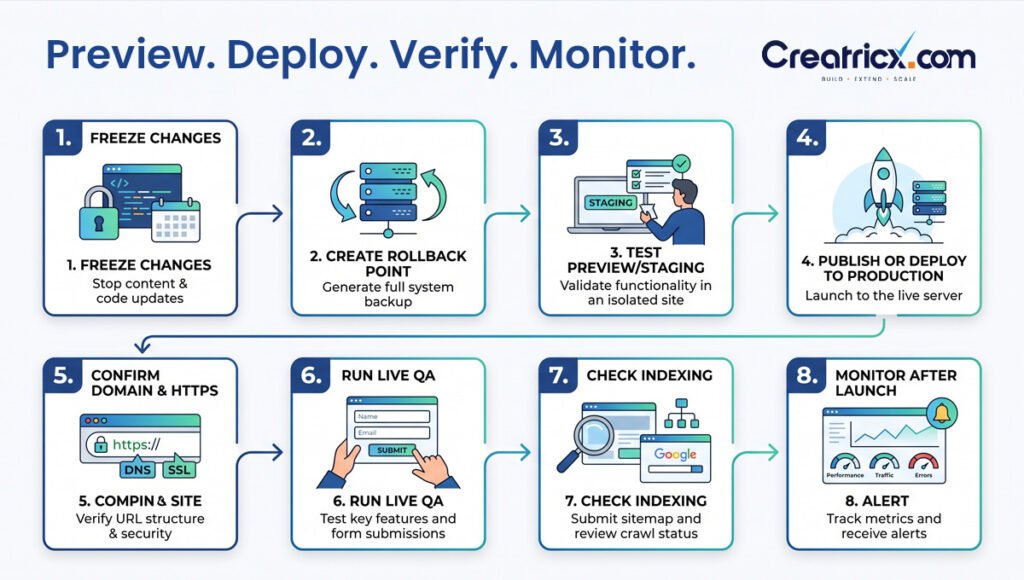
A reliable launch sequence makes mistakes easier to diagnose and reverse. Publishing several unrelated changes at once feels fast until something breaks and nobody knows whether the problem came from DNS, code, content, caching, a plugin, or a production setting.
1. Freeze meaningful last-minute changes
Set a point where the launch candidate stops changing except for genuine blockers. Endless “tiny improvements” make the final version impossible to test consistently.
2. Create a rollback point
Use the platform’s revision system, duplicate theme, backup, release artifact, Git commit, or snapshot. The important part is having a known good version that can be restored without rebuilding the website from memory.
3. Test the exact version you intend to launch
Use staging, preview links, an unpublished theme, or a preview deployment. Test the version that will become production rather than a vaguely similar local copy.
4. Publish or deploy to production
Use the platform’s live publishing action. This can mean clicking Publish, changing Site Availability, removing store password protection, publishing a theme, pushing a branch, or promoting a deployment.
5. Confirm the domain and HTTPS
Open the site through the address customers will actually use. Test both the preferred domain and common variants such as www/non-www when applicable, then confirm redirects and HTTPS.
6. Run live QA
Test navigation, forms, contact email delivery, purchases or bookings, responsive layout, analytics, consent, key pages, and any integration that depends on production credentials.
7. Make the site discoverable
Remove accidental noindex or coming-soon restrictions, confirm the sitemap, verify Search Console, and inspect important URLs.
8. Monitor after launch
Watch 404s, server/build errors, analytics, leads, orders, uptime, Search Console, and support messages. A launch can be technically successful while a business-critical path quietly fails.
How to Publish a Website on WordPress, Wix, Squarespace, Shopify, or Custom Hosting
The interface changes by platform, but the underlying job is the same: make the intended production version public, confirm the correct address, and test what visitors receive.
How to publish a WordPress website
WordPress needs one clarification before any instructions: publishing a page is not always the same as launching the entire website. On a self-hosted WordPress installation that is already connected to public hosting, pages can become live as soon as you publish them. On WordPress.com, a new website can remain in Coming Soon mode until the site itself is launched.
Review the homepage, navigation, footer, contact details, legal pages, and responsive layout.
Preview important pages while logged out or in a private browser window.
Confirm the domain that should be used as the public address.
On WordPress.com, go to Settings → Reading and launch the site / set Site Visibility to Public.
On self-hosted WordPress, remove any coming-soon or maintenance restriction and make sure the site is not intentionally discouraged from search engines when you want organic visibility.
Open the live site through the real domain and test forms, links, analytics, and mobile behaviour.
| WordPress.com | Settings → Reading → Site Visibility → Launch / Public |
|---|---|
| Current note | WordPress.com says new sites remain in Coming Soon mode until launched. Its current launch guide also recommends reviewing content, setting the primary domain, and checking the site as a logged-out visitor after launch. WordPress.com launch guide |
How to publish a Wix website
Wix makes the distinction between saving and publishing unusually clear: saving keeps your work in the editor, while publishing sends the latest version to the live site.
Open the site in the Wix Editor.
Preview the website and test navigation, forms, responsive behaviour, and any business apps.
Click Publish in the top-right area of the editor.
View the live site through the Wix URL or your connected custom domain.
If you edit the site again later, publish again to make those changes live.
| Wix | Editor → Publish |
|---|---|
| Current note | Wix’s current help documentation explicitly notes that Save does not make changes live. After publishing, the site is visible at the free Wix address or a connected custom domain. Wix publishing guide |
How to publish a Squarespace website
Squarespace controls whole-site visibility through Site Availability. A trial site can be built privately, but making the website fully public requires the appropriate paid website subscription.
Finish the core pages and check site-wide styles, navigation, forms, and mobile layout.
Connect or confirm the domain you want visitors to use.
Open Site Availability and set the site to Public when the subscription and site are ready.
Open the public domain while logged out and test the main visitor journeys.
Give DNS and SSL time to finish provisioning when a domain has just been connected.
| Squarespace | Site Availability → Public |
|---|---|
| Current note | Squarespace’s current documentation says a public site can be visited through any connected domain. It also notes that third-party domain connections commonly take 24–48 hours, while correctly connected Squarespace sites receive SSL certificates. Squarespace Site Availability guide |
How to publish a Shopify website or online store
A Shopify launch has more moving parts because a successful homepage is not evidence that checkout, inventory, shipping, taxes, payments, and order emails are ready.
Preview the final theme and confirm product, collection, navigation, policy, and contact pages.
Place at least one test order and test both successful and relevant failure paths.
Publish the intended theme so it becomes the Current theme.
Choose the correct plan if needed, then remove storefront password protection when you are ready for public traffic.
Open the store as a customer and test checkout, transactional emails, mobile layout, and post-purchase flow.
| Shopify | Publish theme → test store → remove password protection |
|---|---|
| Current note | Shopify recommends test orders before launch and says the online-store password should be removed when the store is ready for the public. Only one theme is published at a time. Shopify launch preparation guide |
How to publish a custom-coded website
A custom website has no universal Publish button. What you are really doing is deploying a build to a production environment and routing the public domain to that environment.
For a static website, GitHub Pages can publish HTML, CSS, and JavaScript from a repository or a GitHub Actions workflow. For a modern framework application, a platform such as Vercel separates Preview and Production environments, which makes it possible to test a real deployment before directing production traffic to it.
Commit the launch candidate to version control and ensure production secrets are not stored in the repository.
Create a preview or staging deployment and test the real build output.
Confirm production environment variables, database connections, API keys, redirects, and build settings.
Promote or deploy the tested build to production.
Assign or confirm the custom domain and verify DNS.
Enforce HTTPS and check for mixed-content errors.
Review build/server logs and run live user-journey tests.
| Vercel | Preview deployment → verify → production deployment |
|---|---|
| Current note | Vercel documents separate Local, Preview, and Production environments. Its current CLI workflow supports testing a preview and then deploying or promoting to production. Vercel deployment documentation |
| GitHub Pages | Repository / Actions → Pages → custom domain → HTTPS |
| Current note | GitHub Pages can publish static files from a repository, a branch, or a GitHub Actions workflow. GitHub also supports custom domains and HTTPS enforcement. GitHub Pages documentation |
What a Domain, DNS, Hosting, and SSL Actually Do During Publishing
Website publishing becomes far easier to troubleshoot once these four things stop being treated as the same object.
The domain is the address.
A domain such as example.com is what a visitor types. It does not contain the site. DNS records tell the internet which hosting or platform should receive requests for that address.
Hosting or a platform serves the site.
WordPress hosting, Wix, Squarespace, Shopify, GitHub Pages, Vercel, or another server actually returns the website content when the request arrives.
HTTPS protects the connection.
Modern platforms usually automate SSL/TLS certificates once DNS is configured correctly. A launch is not complete if the preferred domain still throws a certificate warning, redirects in a loop, or loads important assets over insecure HTTP.
DNS changes are not always instant.
Some providers apply domain changes quickly, while others warn that propagation can take hours. WordPress.com notes that a recently connected domain can take 24–72 hours to become fully active; Squarespace and GitHub Pages both note that some domain/DNS changes can take up to roughly 24–48 hours. That does not mean every change takes that long. It means launch plans should not assume DNS is a button with emotional commitment issues.
The Launch Methodology Creatricx Recommends
For a business website, we would treat publishing as a controlled change rather than a ceremonial click. The practical launch owner should know what version is going live, what can be rolled back, which domain is canonical, who verifies forms and analytics, and what evidence determines whether the launch is healthy.
Use a preview or staging version for meaningful structural changes.
Keep the production domain, hosting access, DNS, analytics, Search Console, and CMS ownership under business-controlled accounts wherever possible.
Document redirects before a redesign or migration rather than discovering missing URLs through customer complaints.
Validate forms with real delivery tests, not only a green success message in the browser.
Test the page as a logged-out visitor on a phone and desktop.
Check the production source of truth: final URLs, canonical tags, robots directives, sitemap, analytics, and consent behaviour.
Keep the previous version or a rollback method available until the launch has been verified.
Need a launch team, not just a finished design? Creatricx website development covers planning, responsive development, CMS architecture, integrations, technical SEO foundations, migration, QA, and launch support. The site is treated as a live business system, not a folder of pages that happens to render. |
|---|
The Post-Launch QA Checklist
The first public hour is a better test than the final private hour. Production has real domains, real credentials, real caching, real analytics, real email delivery, and real visitors.
1. Visibility and domain checks
The preferred domain opens without a warning.
HTTP redirects to HTTPS.
www/non-www behaviour matches the intended canonical address.
No coming-soon page, storefront password, staging authentication, or maintenance screen remains.
Important pages return a normal success response rather than 404/500 errors.
2. Visitor journey checks
Main navigation, footer links, logo, breadcrumbs, and CTAs work.
Contact forms submit and the notification actually arrives.
Booking, quote, login, checkout, or account flows work where relevant.
The site remains usable on a real phone, not only a narrow desktop browser window.
Important images load and do not show obvious layout shifts or broken paths.
3. Measurement checks
Analytics is receiving live traffic.
Conversion events are firing once, not zero times or three times.
Advertising pixels or server-side tracking work where relevant.
Consent settings behave according to the business’s implementation and legal requirements.
4. Search checks
Important pages are not accidentally noindexed.
robots.txt is not blocking sections intended for search.
Canonical URLs point to the production version.
The XML sitemap is accessible and lists the intended canonical URLs.
Search Console ownership is verified and important pages can be inspected.
5. Recovery checks
A backup or previous deployment exists.
Someone knows who can roll back the site.
The team has a record of DNS, redirects, launch version, and major configuration changes.
Publishing a Website Is Not the Same as Getting It Into Google
This is one of the most useful things to understand after launch. A website can be publicly available immediately and still take time to appear in Google.
Google says crawling and indexing depend on many factors and cannot be guaranteed on a particular schedule. Search Console can help you verify ownership, inspect index status, request crawling for individual URLs, submit a sitemap, and monitor search performance.
Verify the website in Google Search Console.
Inspect the homepage and a few important commercial pages with URL Inspection.
Fix blocking issues such as passwords, noindex directives, crawl problems, or non-successful HTTP responses.
Submit the sitemap in Search Console if the platform has one.
Use Request Indexing selectively for important new or materially changed URLs rather than repeatedly submitting the same page.
Monitor Page Indexing and Performance reports after Google begins crawling the site.
A sitemap is a hint, not a ranking button Google’s current documentation says a sitemap can help discovery, particularly for a new site, but submitting one does not guarantee crawling, indexing, or higher rankings. Most common CMS platforms already generate sitemaps, so the practical job is usually to verify the correct one and submit it once. |
|---|
SEO Checks That Belong Before Launch, Not Three Weeks After It
Each important page has a unique purpose and a sensible final URL.
Page titles and meta descriptions are written for the final production pages.
One primary H1 exists where appropriate and heading structure is understandable.
Internal links use the production URLs rather than staging addresses.
Redirects exist for valuable old URLs when a redesign or migration changes structure.
Canonical tags point to intended production URLs.
Images have useful filenames and appropriate alt text when the image conveys information.
Structured data reflects visible page content and uses the correct production domain.
The site is crawlable and important content is available without requiring interaction that search engines cannot reliably access.
Legal, privacy, cookie, contact, and business information appropriate to the website are in place before promotion.
The SEO lesson here is not that launch day needs a hundred-item spreadsheet. It is that URL changes, indexing controls, redirects, and analytics become much more expensive to repair after traffic and backlinks start hitting the wrong version.
What to Do When a Published Website Still Does Not Look Live
The domain shows nothing or the wrong site
Check whether the domain is connected to the intended platform, whether DNS records match the provider’s current instructions, and whether enough time has passed for the change to propagate. Do not keep changing DNS records every ten minutes; that replaces one problem with several competing versions of the same problem.
You still see the old design
Open the site in a private browser, clear browser cache where appropriate, and check whether a CDN, platform cache, reverse proxy, or optimization layer is serving an old version. Also confirm that the intended theme/build was actually published rather than merely saved.
HTTPS is not ready
Confirm that DNS points to the correct host and allow the platform’s certificate process time to complete. Check for extra DNS records and mixed-content assets if the certificate exists but the browser still reports insecurity.
The homepage works but other pages 404
This often points to incorrect routes, rewrite rules, deployment structure, missing files, base-path configuration, or links that still reference a preview location. On migrations, it can also mean old URLs were never redirected.
The form says success but no email arrives
Treat the form confirmation and message delivery as two separate tests. Check production email settings, SMTP or API credentials, spam filtering, recipient rules, CRM/webhook integration, and server logs.
The site is live but not in Google
Check Search Console, page status, noindex, crawl permissions, sitemap, canonicals, and whether the site is simply new. Google explicitly warns that requesting a crawl does not guarantee immediate inclusion.
A Practical Launch Scenario: Moving a Service Website From Staging to Its Real Domain
Imagine a 20-page professional-services website has been approved on staging.examplehost.com and will replace an older site on example.com.
Export or record the old site’s important URLs, especially pages receiving traffic or links.
Prepare redirects for URLs that will change.
Create a final production backup of the old site and a tested launch copy of the new one.
Freeze major new design work and run final staging QA.
Move or deploy the site to production hosting.
Point the domain to the correct production environment if hosting changed.
Verify HTTPS, canonical domain, redirects, robots, noindex, forms, analytics, and conversion events.
Check the homepage, service pages, contact page, and several old URLs while logged out.
Submit or confirm the sitemap in Search Console and inspect important URLs.
Watch 404s, enquiries, analytics, Search Console, and uptime over the following days.
Notice how little of that sequence is 'upload the website.' The work is mostly preserving intent across systems: URLs, domains, access, measurement, user journeys, and search discovery.
When You Can Publish a Website Yourself and When You Should Bring in a Developer
Publishing your own site is reasonable when you are working inside a managed platform, the domain is already connected, the site has a small number of pages, and you can test the important visitor journeys.
You are launching a straightforward Wix, Squarespace, or WordPress.com site.
There is no migration from an older URL structure.
The site has no complex checkout, account, API, CRM, booking, or custom-code dependency.
You understand how to restore the previous version if something goes wrong.
Bring in technical help when the launch includes a migration, custom hosting, DNS changes you do not understand, production databases, payment flows, complicated tracking, API integrations, a large redirect map, custom JavaScript, or a business where an hour of broken lead capture would matter.
The useful boundary is not 'technical people publish websites, nontechnical people do not.' It is whether the consequence of a mistake is larger than the effort required to test and control the launch.
What Experience Changes About Website Publishing
Beginners naturally focus on the visible page. Experienced launch planning focuses on dependencies. The homepage can look perfect while an environment variable points to a test account, a contact form still sends to the developer, a payment gateway is in test mode, or every page carries a staging canonical.
That is why a dependable launch review asks questions that are slightly less exciting than 'does the design look good?'
What version are we launching?
What can we restore if it fails?
Which URL is canonical?
Which third-party systems use different production credentials?
What needs to be tested with a real transaction or submission?
Which settings existed only because the site was on staging?
Which measurements tell us the site is working after visitors arrive?
The deeper point is simple: a website launch is a controlled transition between states. Once you think of it that way, backups, staging, redirects, DNS, monitoring, and Search Console stop looking like unrelated technical chores and become one coherent publishing process.
Why This Tutorial Is Structured Around Decisions, Not Just Platform Buttons
Platform help centres already explain where their Publish buttons live. Repeating those instructions with different adjectives would add very little. The useful layer for a business owner is understanding what the button changes, what it does not change, and what to verify around it.
Google’s people-first content guidance asks whether content demonstrates real expertise, leaves readers feeling they have learned enough to achieve their goal, and adds value rather than mainly summarizing what others have said. For this topic, the value is the cross-platform launch model: preview, production, domain, live QA, recovery, and search discovery.
Editorial E-E-A-T recommendation Before publishing this article on Creatricx, use a real author byline and add a named technical reviewer from the web-development team. Include an updated date, keep the platform steps current, and replace or supplement the original diagrams with real launch screenshots when Creatricx has screenshots it is comfortable publishing. |
|---|
Frequently Asked Questions About Publishing a Website
How do I publish a website?
Put the final website in a production environment, connect or confirm the public domain, make the site publicly accessible, test the live visitor journey, and then verify search-engine discovery settings. On hosted builders this may be a Publish or Public button; on custom sites it is usually a deployment plus domain configuration.
Can I publish a website for free?
Yes, depending on the platform and requirements. Services such as a free Wix address, WordPress.com subdomain, or GitHub Pages can make a site public without a custom-domain hosting bill. A professional business launch usually benefits from a custom domain and a plan that supports the required features.
Do I need hosting to publish a website?
A website needs somewhere to be served from, but you do not always buy hosting separately. Wix, Squarespace, Shopify, WordPress.com, GitHub Pages, and Vercel include hosting as part of the platform or deployment service. Self-hosted WordPress and many custom sites use a separate hosting provider.
What is the difference between saving and publishing a website?
Saving usually stores your changes without necessarily changing what visitors see. Publishing makes the selected version public. Wix explicitly separates Save from Publish. Other platforms use concepts such as Public, Current theme, Production deployment, or Launch site.
How do I publish a WordPress website?
If you use WordPress.com, review the site, confirm the primary domain, and use Settings → Reading → Site Visibility to launch or make the site public. On self-hosted WordPress, make sure the hosting is live, remove coming-soon restrictions, publish the required pages, and verify the real domain as a visitor.
How do I publish a Wix website?
Open the Wix Editor, preview the site, and click Publish. Saving alone does not make Wix changes live. After publishing, check the live Wix address or your connected custom domain.
How do I publish a Shopify store?
Preview and publish the intended theme, place test orders, verify payments, shipping and taxes, then remove online-store password protection when you are ready for public visitors.
How long does it take for a website to go live?
The platform publish action can be fast, but domain and DNS changes can take longer. Some providers warn that DNS or connected-domain changes may take 24–72 hours in some cases. Search-engine indexing is separate and can take days or longer.
How do I get a newly published website on Google?
Make sure the site is publicly crawlable, verify it in Google Search Console, inspect important URLs, submit the XML sitemap if appropriate, and ensure pages are not blocked by passwords, noindex directives, crawl restrictions, or errors. Google does not guarantee immediate indexing.
Do I need an SSL certificate before publishing?
A public business website should use HTTPS. Many managed platforms provision SSL automatically after the domain points correctly. Do not promote a site while the preferred domain still shows a security warning or loads important assets over insecure HTTP.
Can I unpublish a website after launching it?
Usually yes, but the method depends on the platform. You may switch a site back to private or coming-soon mode, add password protection, unpublish a deployment, or point the domain elsewhere. Consider search and customer impact before taking an established site offline.
What should I test immediately after publishing?
Test the real domain, HTTPS, navigation, forms, email delivery, bookings or checkout, mobile layout, analytics, consent behaviour, key redirects, page status, robots/noindex settings, sitemap, and your rollback method.
In Summary
Publishing a website is the process of moving the intended version into production, making the public address resolve to it, removing private or pre-launch restrictions, and verifying the live experience. The platform may reduce that to one visible button, but the launch itself still includes domain, HTTPS, forms, analytics, user journeys, recovery, and search discovery.
If you remember only one framework, use this one: preview the exact release, preserve a rollback point, publish to production, verify the real domain, test the live business journey, then make search discovery observable through Search Console and the sitemap.
A website does not need to be perfect to launch. It does need to be understandable, functional, secure enough for its purpose, measurable, and recoverable. That is the difference between putting pages online and publishing a website professionally.
Launch a website that is ready for real visitors Creatricx builds and improves business websites with responsive development, CMS structure, integrations, SEO-friendly foundations, QA, migration support, and post-launch maintenance. |
|---|
Research & Verification Notes
Platform interfaces and policies change, so these sources should be rechecked during future editorial updates. The article paraphrases current documentation rather than copying help-centre text.
1. Google Search Central — Get started with Search Console — Search Console verification, indexing visibility, sitemap submission, performance monitoring.
2. Google Search Central — Ask Google to recrawl URLs — URL Inspection, sitemap use, crawl timing, and no guarantee of immediate indexing.
3. Google Search Central — Build and submit a sitemap — Sitemap creation and submission; sitemaps are hints rather than guarantees.
4. Google Search Central — People-first content guidance — People-first content, first-hand expertise, satisfying the reader’s goal, and adding real value.
5. WordPress.com — Launch your website — Coming Soon mode, launch process, domain readiness, and post-launch visitor review.
6. Wix — Publishing your site — Publish action, distinction between Save and Publish, and live-site viewing.
7. Squarespace — Publish or hide your site — Site Availability and public publishing.
8. Squarespace — Connect a third-party domain — DNS/domain mapping and connection timing.
9. Squarespace — SSL certificates — Automatic SSL for correctly connected domains.
10. Shopify — Preparing your store for launch — Test orders, storefront preview, and removing password protection.
11. Shopify — Publishing themes — Publishing a theme and handling previous themes.
12. Vercel — Promote preview to production — Preview verification and production promotion.
13. GitHub — Creating a GitHub Pages site — Publishing static sites from repositories / Actions and viewing the published site.
14. GitHub — Managing a custom domain for Pages — Custom domains, DNS, propagation, and HTTPS setup.
15. Pexels — commercial-use guidance — Pexels free commercial-use guidance and third-party rights caution.
Ready for Real Visitors
Launch the Website the Right Way
Creatricx supports responsive development, CMS architecture, integrations, SEO-friendly foundations, QA, migrations, production launch, and post-launch maintenance.